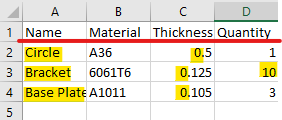
1. Under the Part Name column, it is important that the name here, matches the name of the DXF it is associated with.
2. Under the Material column, it is important that the name of your material matches the name for this Material in SecturaFAB
3. Under the Thickness column, it is important that the Decimal value is used, not its Ga number
a. This numerical value, must start with a number i.e. (.105 should be 0.105)
4. Under the Quantity tab, it is important that this is a numerical value, and not a string i.e. (use 1, rather than One)
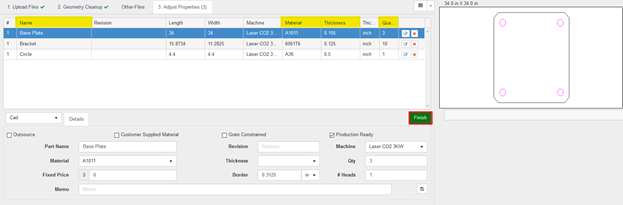
Once the DXFs are identified, and the CSV is correct, it should look something like this:
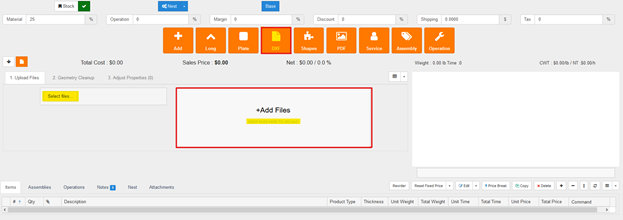
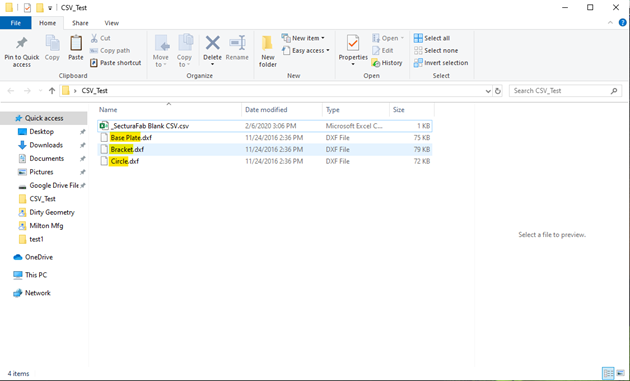
The second step is placing these files in a folder and compressing (zip) it, or simply select all the DXF file and the CSV at the same time, and dropping them in the “+ Add Files” box:
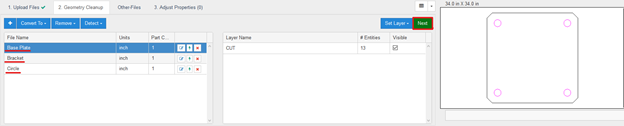
The third step is cleaning up the geometry that you have imported if needed and hitting the Green “next” button.
The fourth and final step is verifying that the data is correct, and clicking the green “Finish” button. Now the DXF files, have been added as line items to the quote, using the material, thickness, and quantity that was specified in the CSV file.