
After watching the below video or viewing the step-by-step guide, you will be able to understand the dashboard and key areas of the SecturaFAB software including:
- Start a quote from the SecturaFAB dashboard.
- Add an existing/new organization.
- Edit the global action bar.
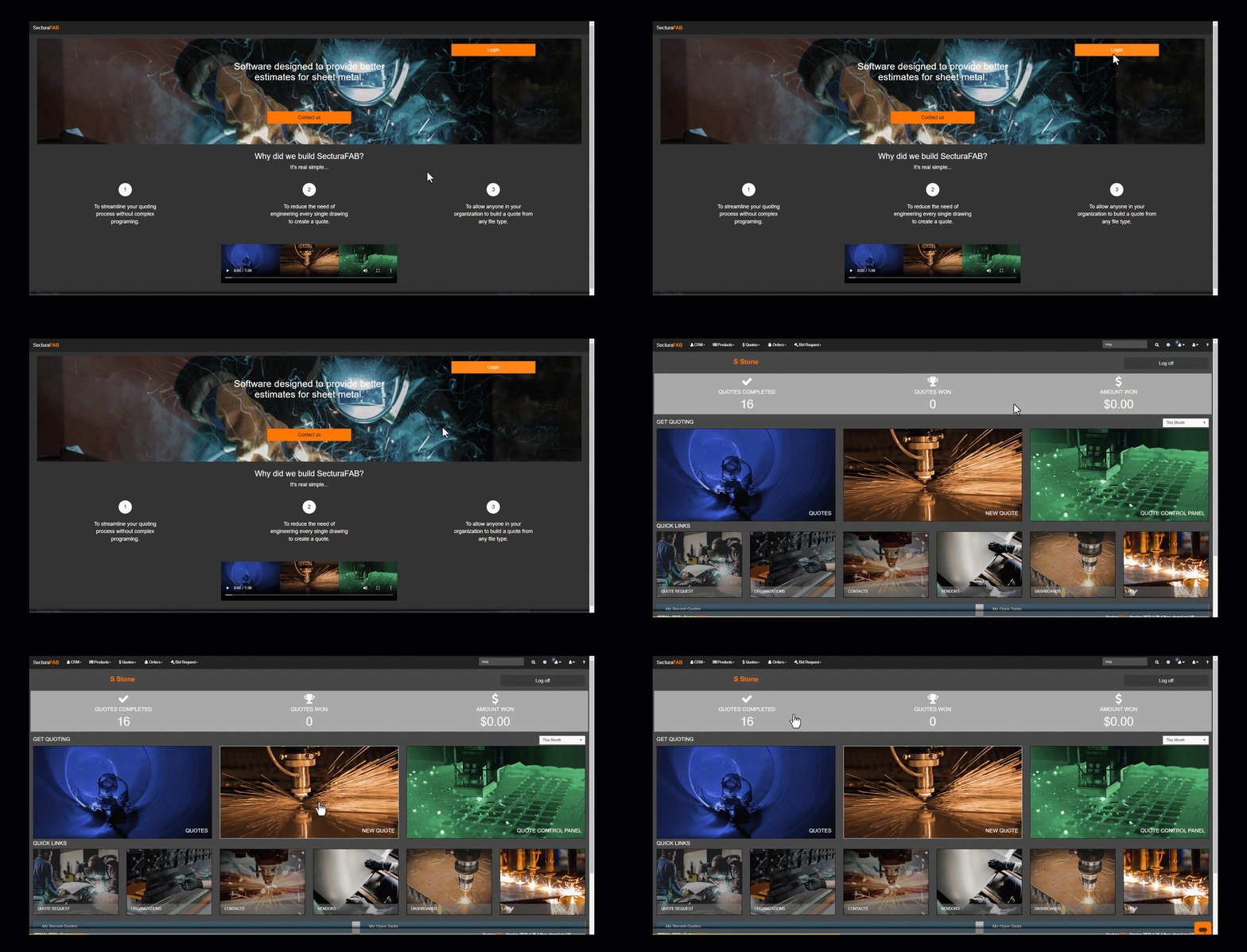
Logging into SecturaFAB
Navigate to: www.secturafab.com
Login using your credentials
After logging in, click "New Quote" on your dashboard. Once clicked you will be brought to the SecturaFAB quote screen to begin your quote.
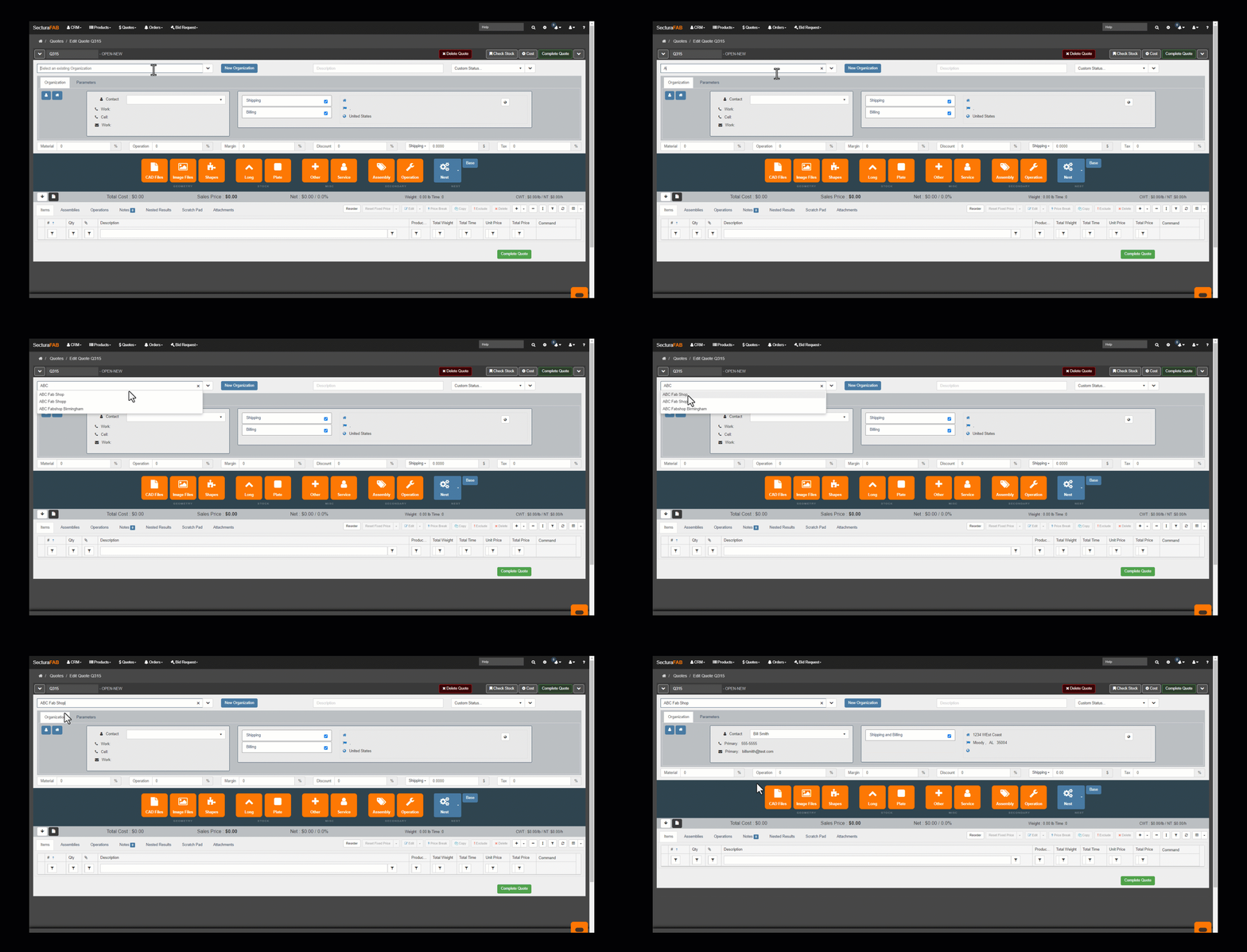
Add an Organization
Select an organization you wish to quote for by either spelling out the organization name or backspacing to have a complete alphabetized list of all the organizations located within your SecturaFAB customer resource manager (CRM).
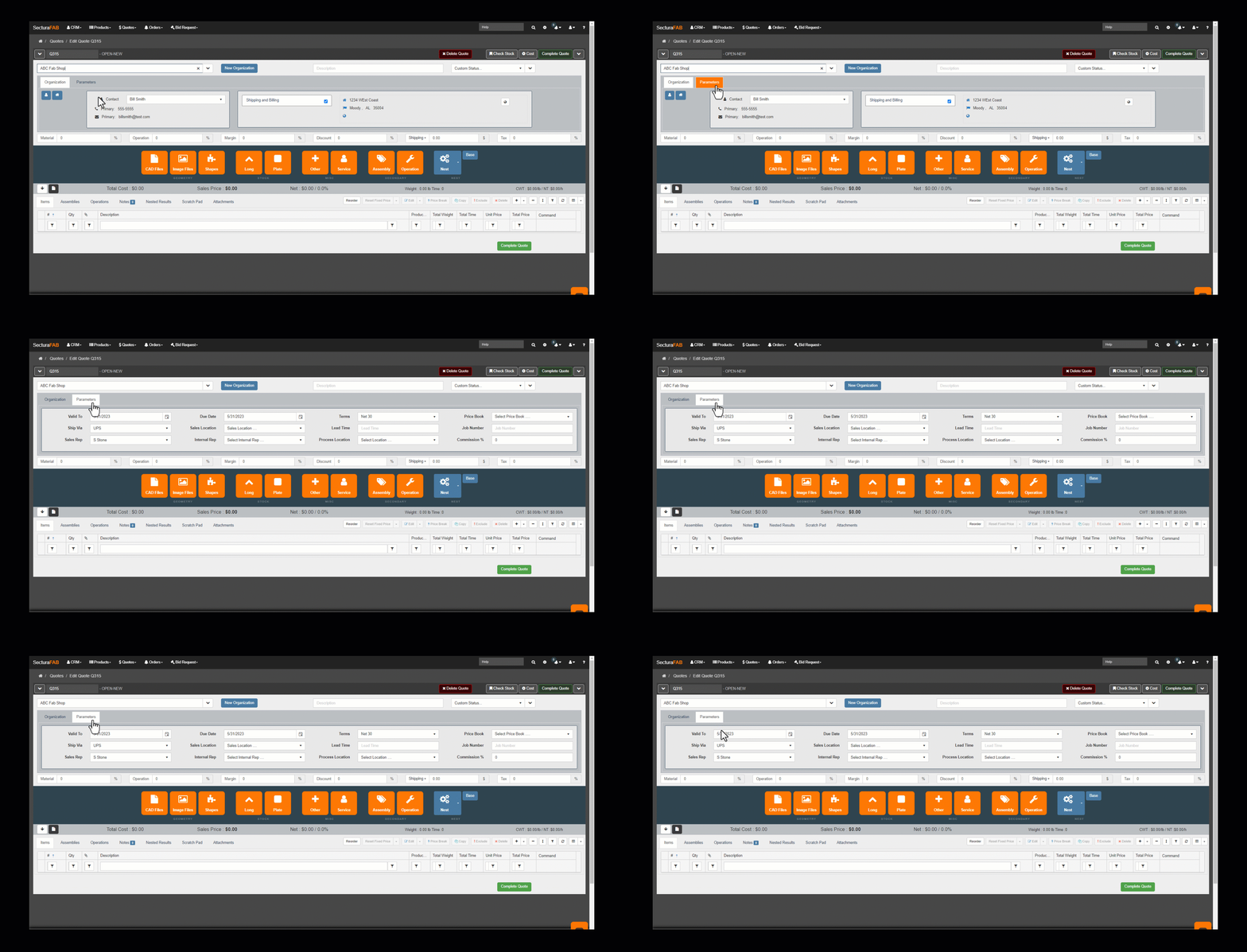
Contact Information
After selecting the organization you wish to quote for, the contact information associated with that organization will auto populate.
Further, finance details outlined in the SecturaFAB CRM will populate when applicable including, margin, notes, and financial terms
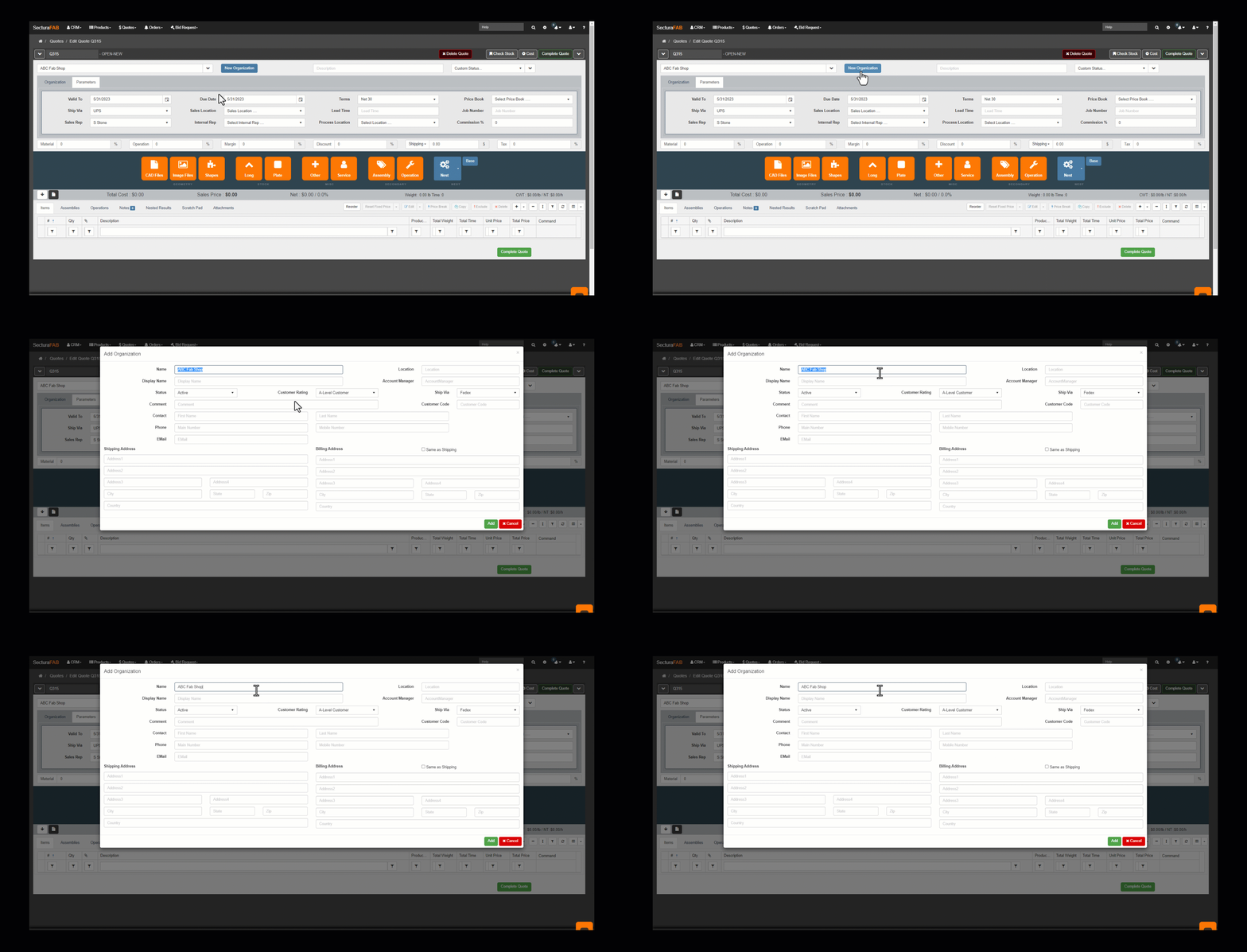
New Organizations
SecturaFAB makes it easy to add a new organization as needed. Simply click the New Organization button to begin.
Fill out important details such as
- Company Name
- Address
- Customer Rating
- Status
You are even able to view the location of your customer on google maps to determine the shipping distance.
New Contacts
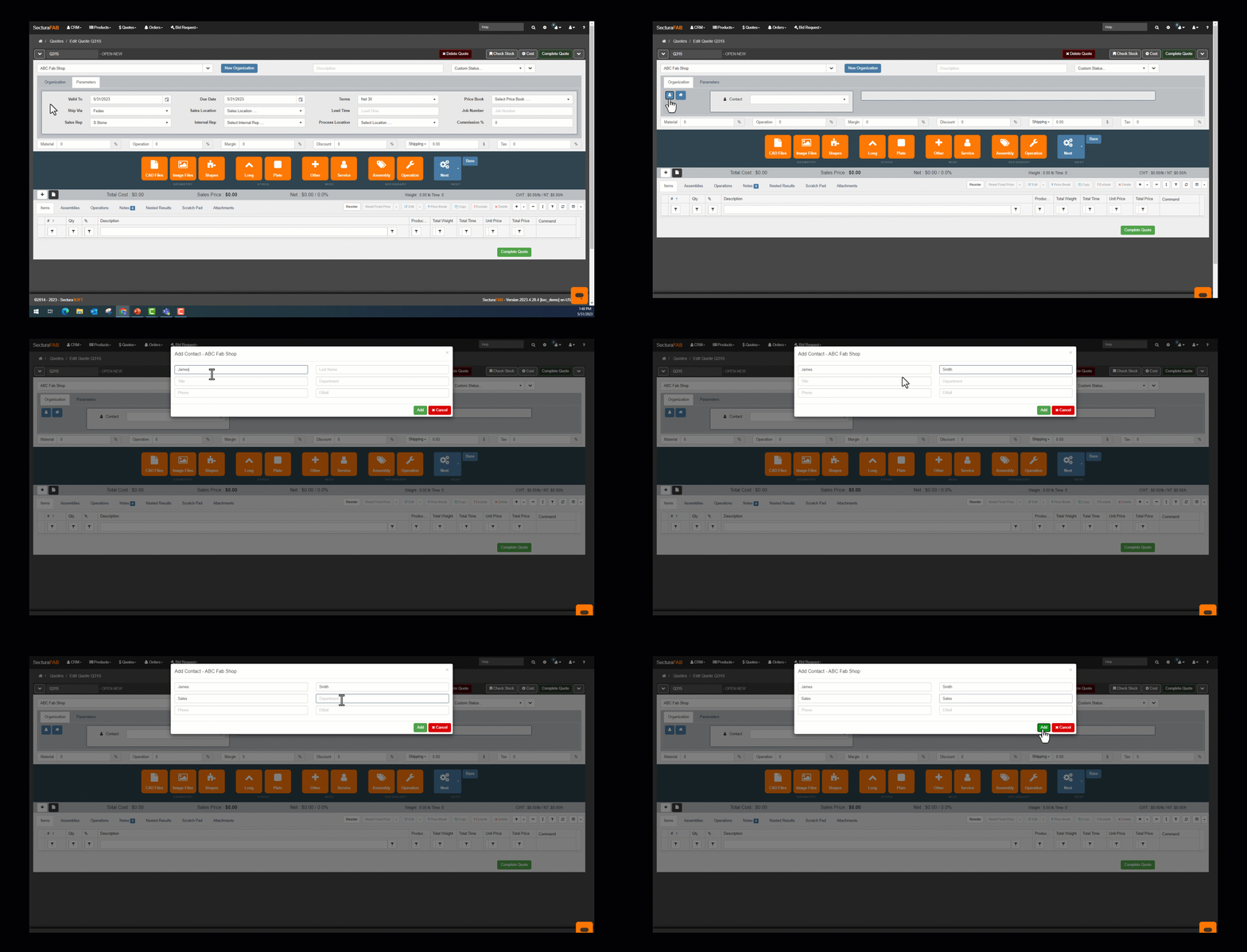
Add a new contact to the organization by clicking the new contact button. Fill in information such as title, email and phone number.
Global Action Bar
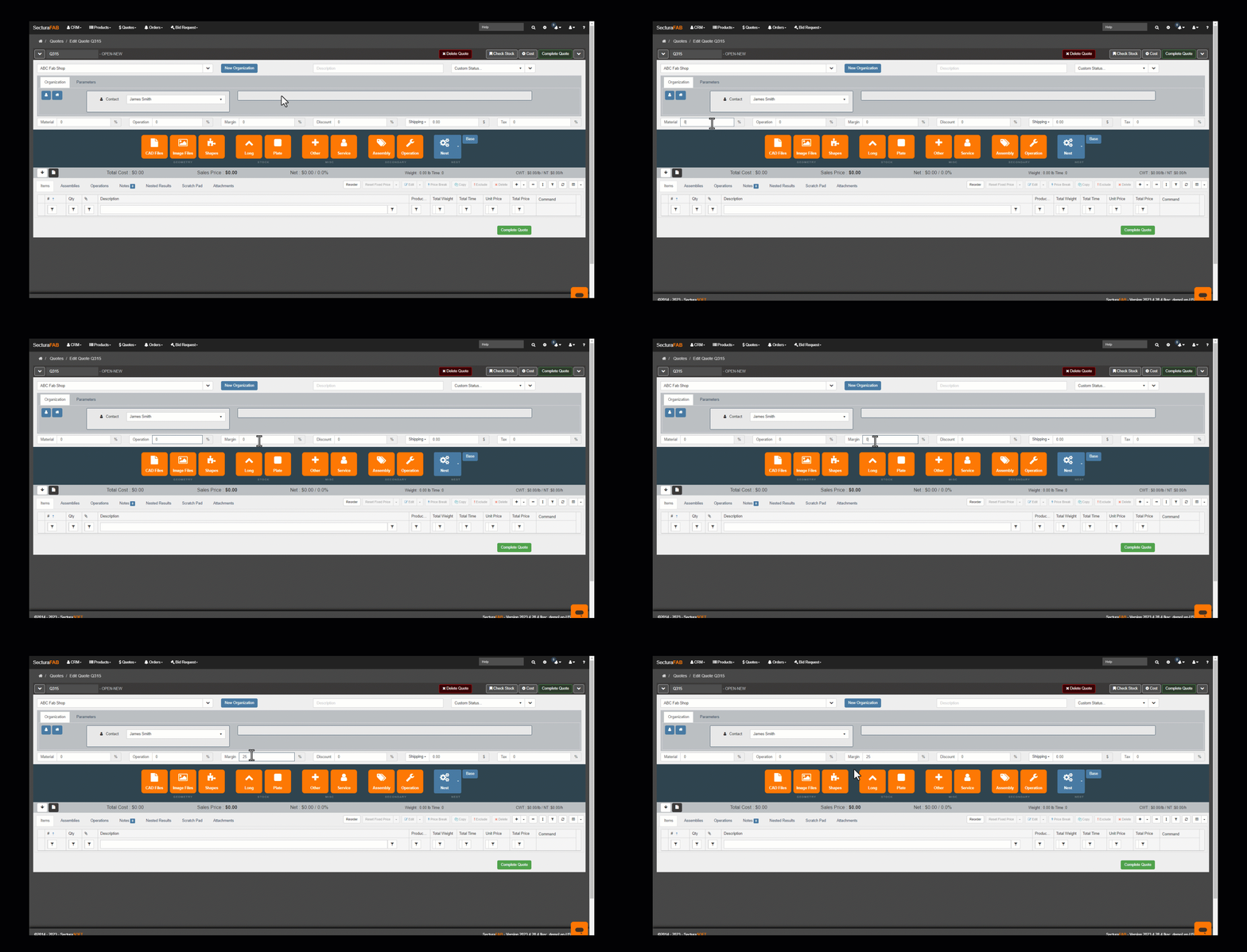
Set quote financial details such as material markup, operation markup or add an overall margin you wish for this quote. Also, add a discount percentage, shipping and tax information easily with the global action bar.
Conclusion
in this guide, you learned how to:
- Start a quote from the SecturaFAB dashboard.
- Add an existing/new organization.
- Edit the global action bar.
Congratulations!