
In this article, you will learn how to use the settings in SecturaSYNC to connect to your ERP and use the scheduling function to make the syncing process automatic.
Table of Contents
Button Identification and Functions
Button Identification and Functions
- Toggle: Allows you to enable and run the location sync
- Refresh: Allows you to reset the function and manually push data
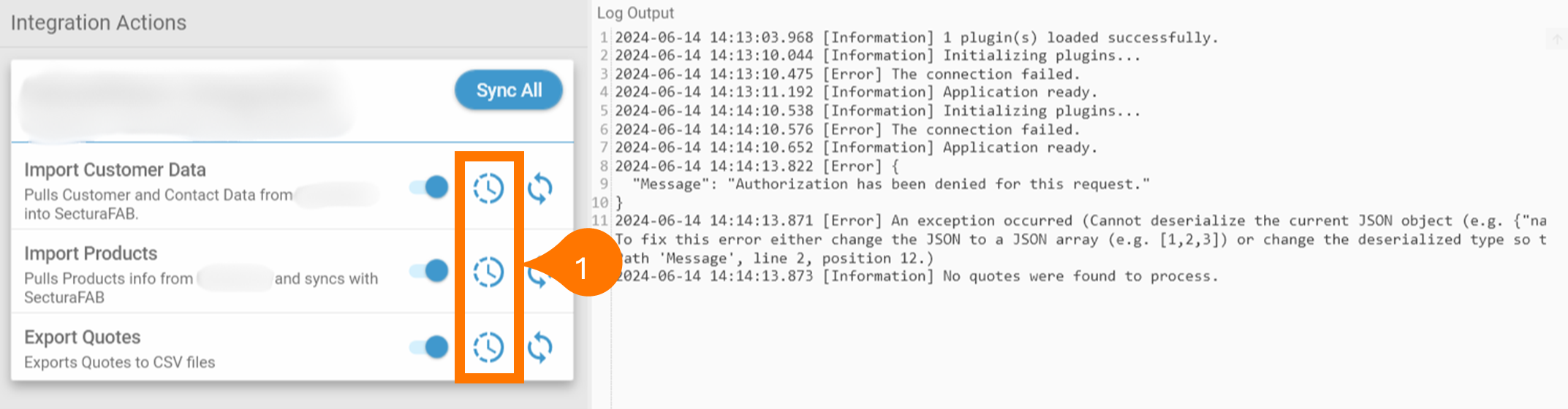
- Scheduler: Allows you to set up automation schedules
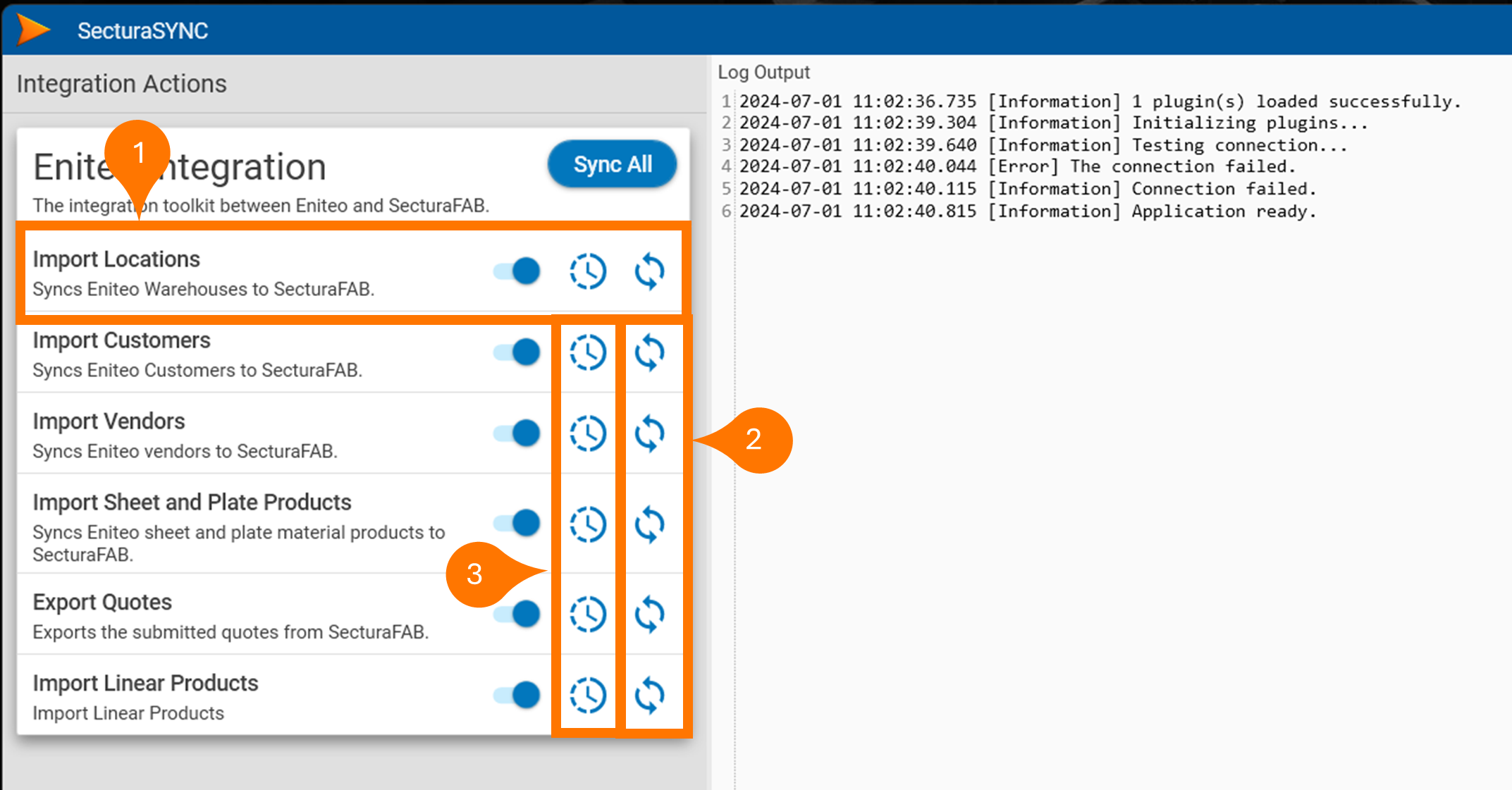
How do I set up sync actions?
Use the clock icon to set up sync automation schedules. The frequency is up to you.
Most actions can run nightly. You may prefer to export quotes at a greater frequency. We recommend anywhere from every 5 minutes to every 30 minutes.
Click the refresh icon to reset the location sync function. This will allow you to manually push the data.
When you’re done, close the application so the scheduler will run.
Troubleshooting
Error: Null Reference Error
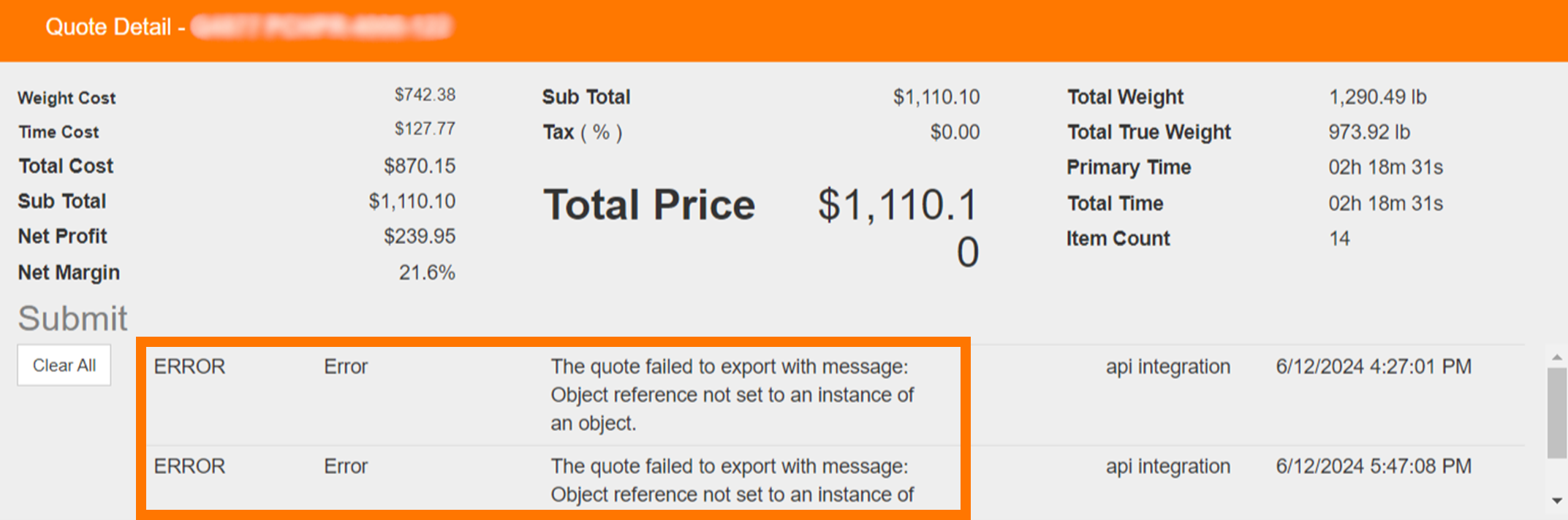
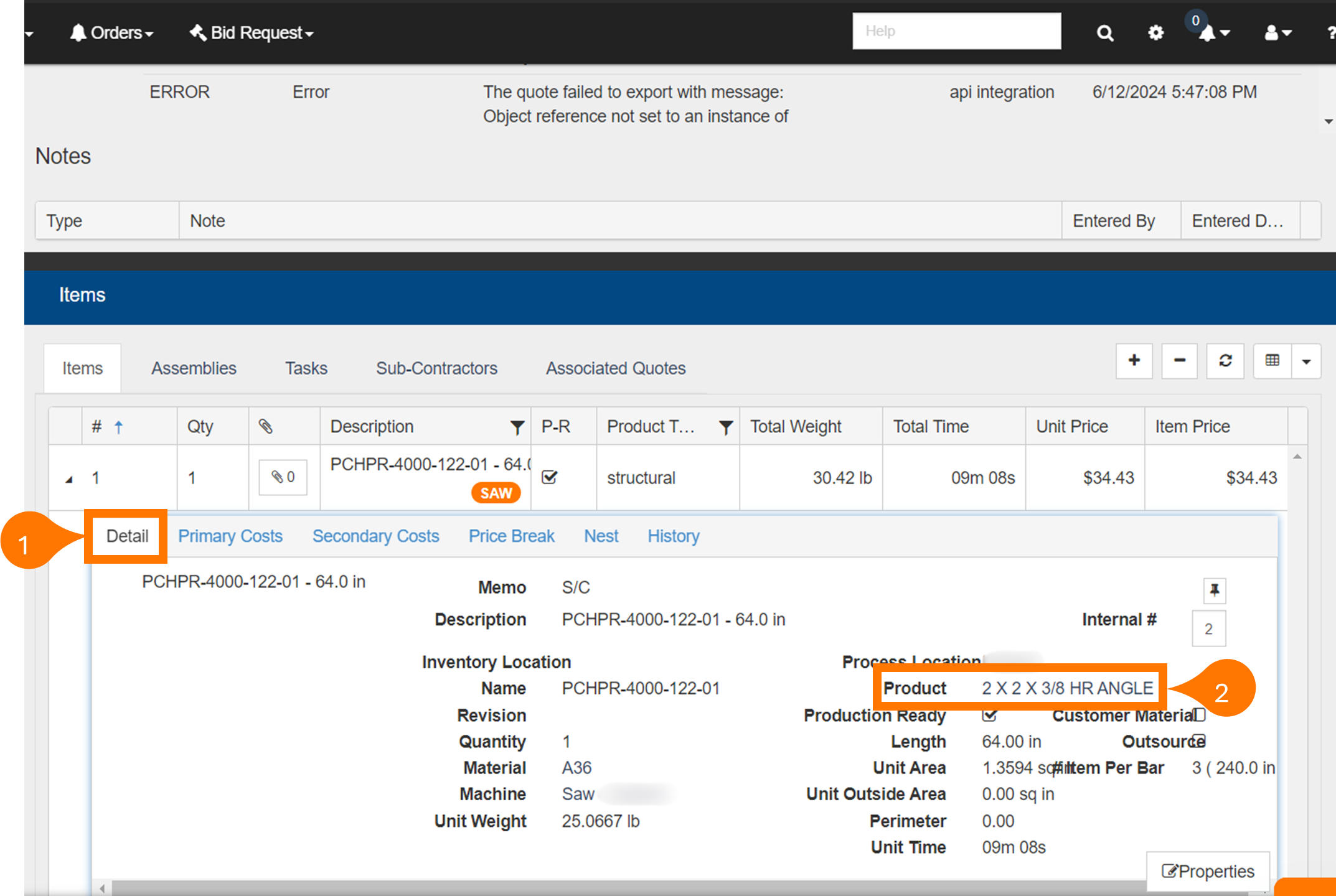
If the message reads as “Object reference not set to an instance of an object,” in either SecturaFAB or SecturaSYNC application, go into SecturaFAB and confirm that the Product on the Details Tab of the line item is properly linked.
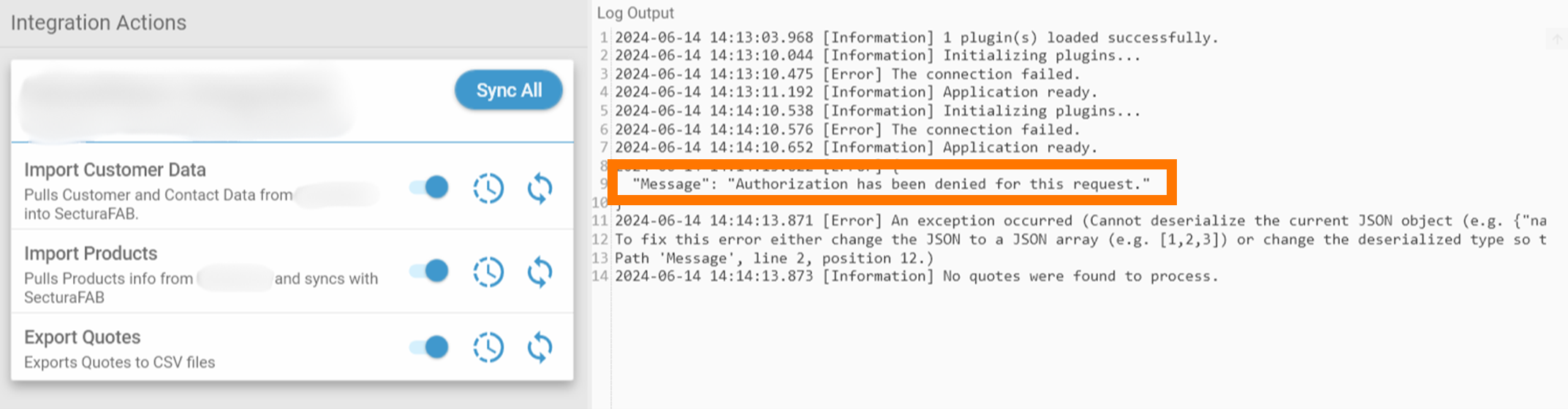
Error: Authorization Denied
If the message reads “Authorization has been denied for this request,” this error has occurred due to incorrect login credentials.
- Check that the “Tenant ID” matches the name of your SecturaFAB tenant.
- Check that you’ve entered the correct username or password.
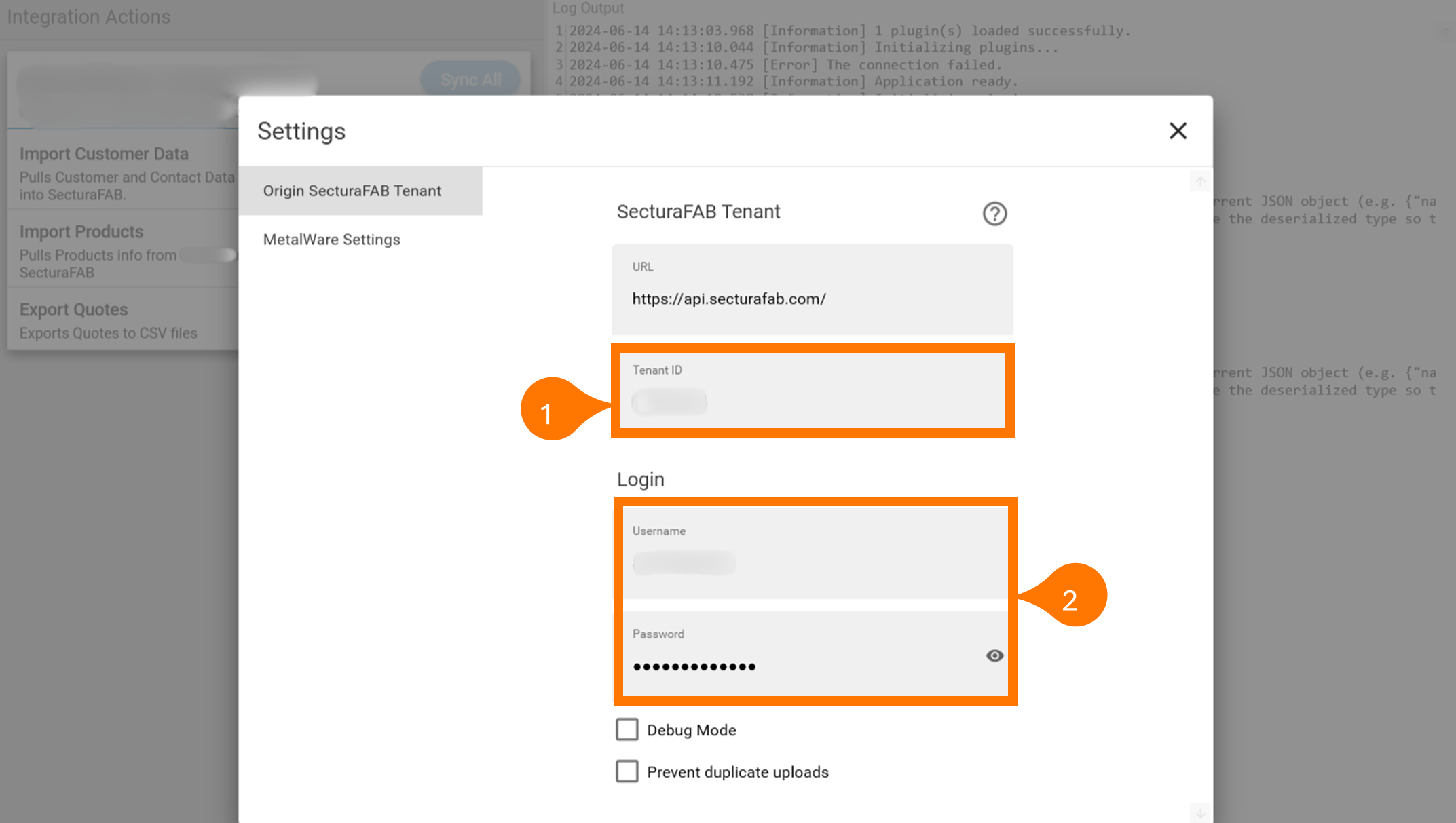
For more information about authorization issues, check out this article on SecturaSYNC Authorization Errors.
Error: Missing Identifier
If the message reads “No customer could be found for identifier,” confirm that a valid customer from your ERP is filled out in SecturaFAB.
Error: Update SecturaSYNC
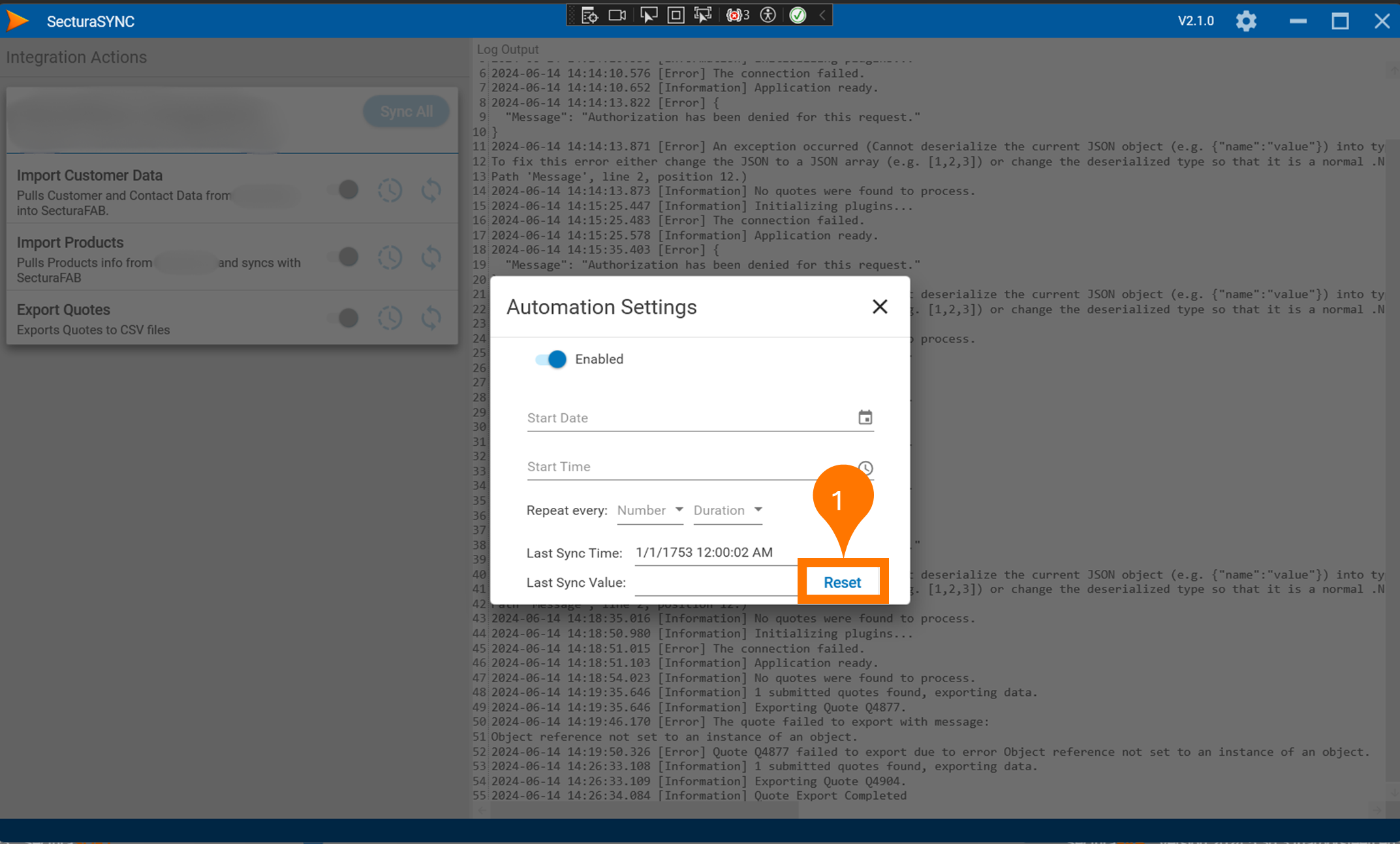
Whether the message says “[no customer, vendor, linear, or plate] updated since last sync date XX/XX/20XX 10:00 AM,” this means you have already imported a product at an earlier time and date. To import the remainder of the products or to import them into a different tenant, you must reset the sync time.
1, Go into SecturaSYNC and open the scheduler.
2. Select the “Reset” button to reset the last sync time.
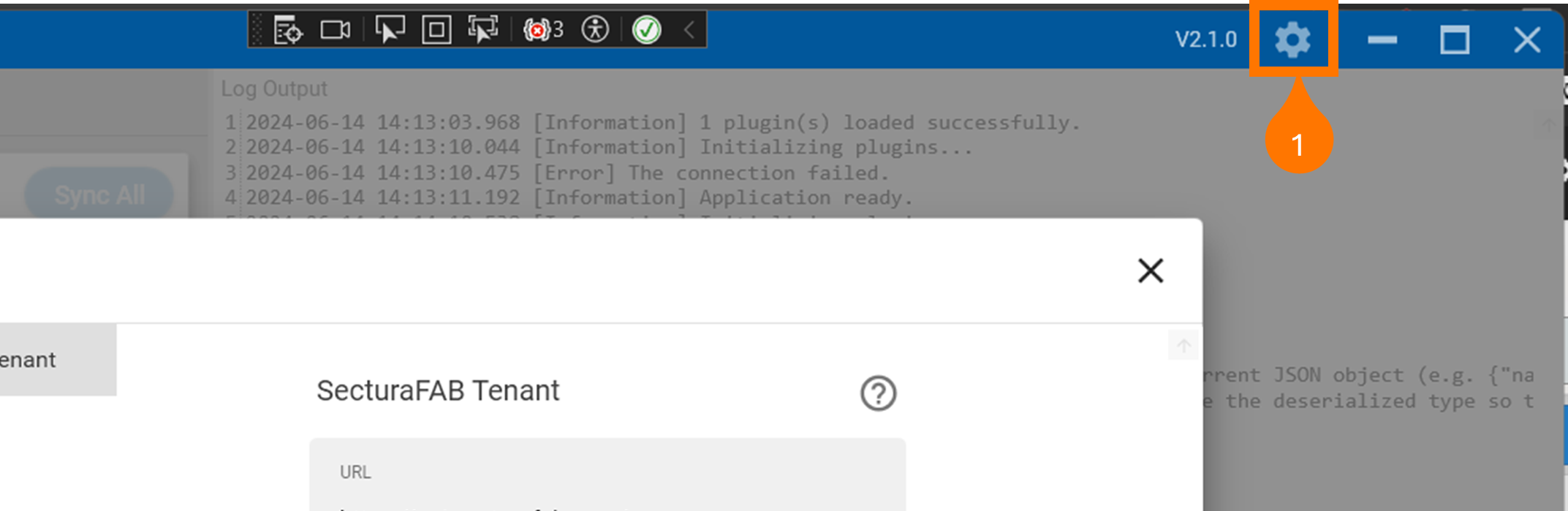
3. If the previous steps do not work, try resetting SecturaSYNC. You can reset easily by opening the settings and then exiting. This will automatically refresh the system. Read this article about Resetting SecturaSYNC for more information.
Error: "Truncated"
If you receive an error message like this:
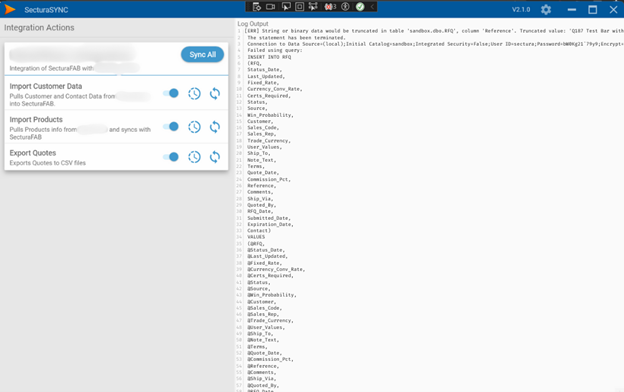
Locate "Truncated."
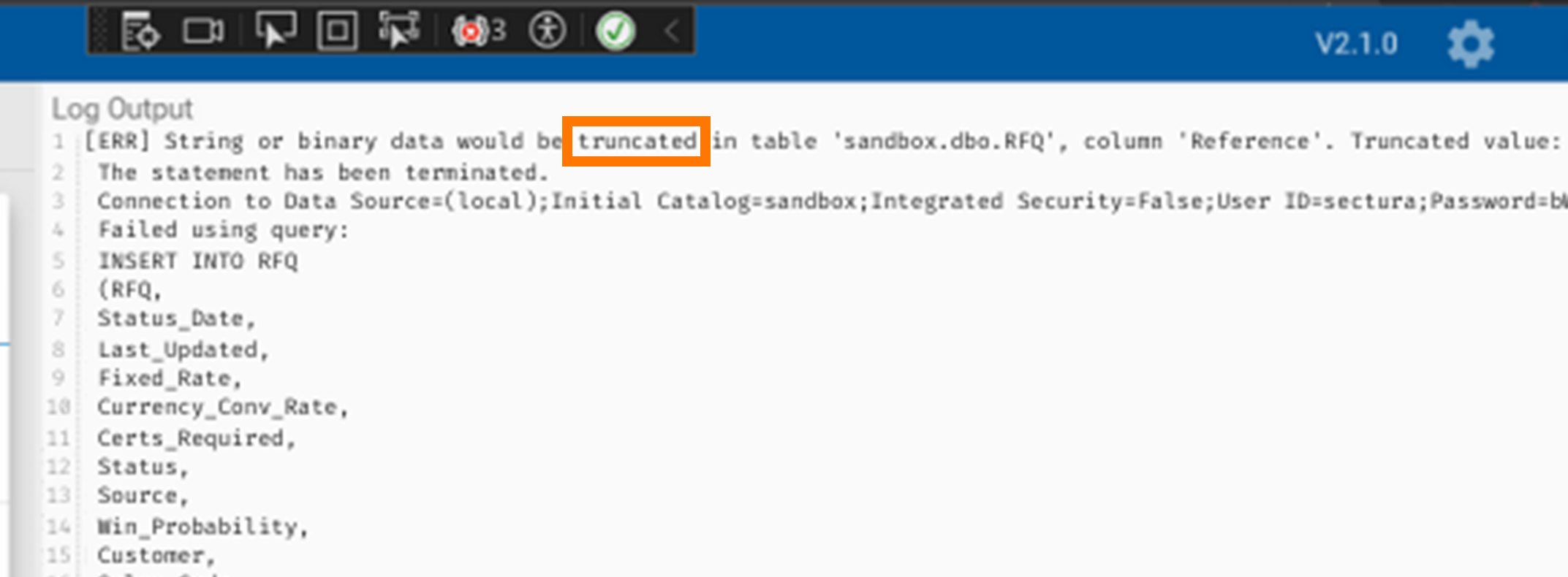
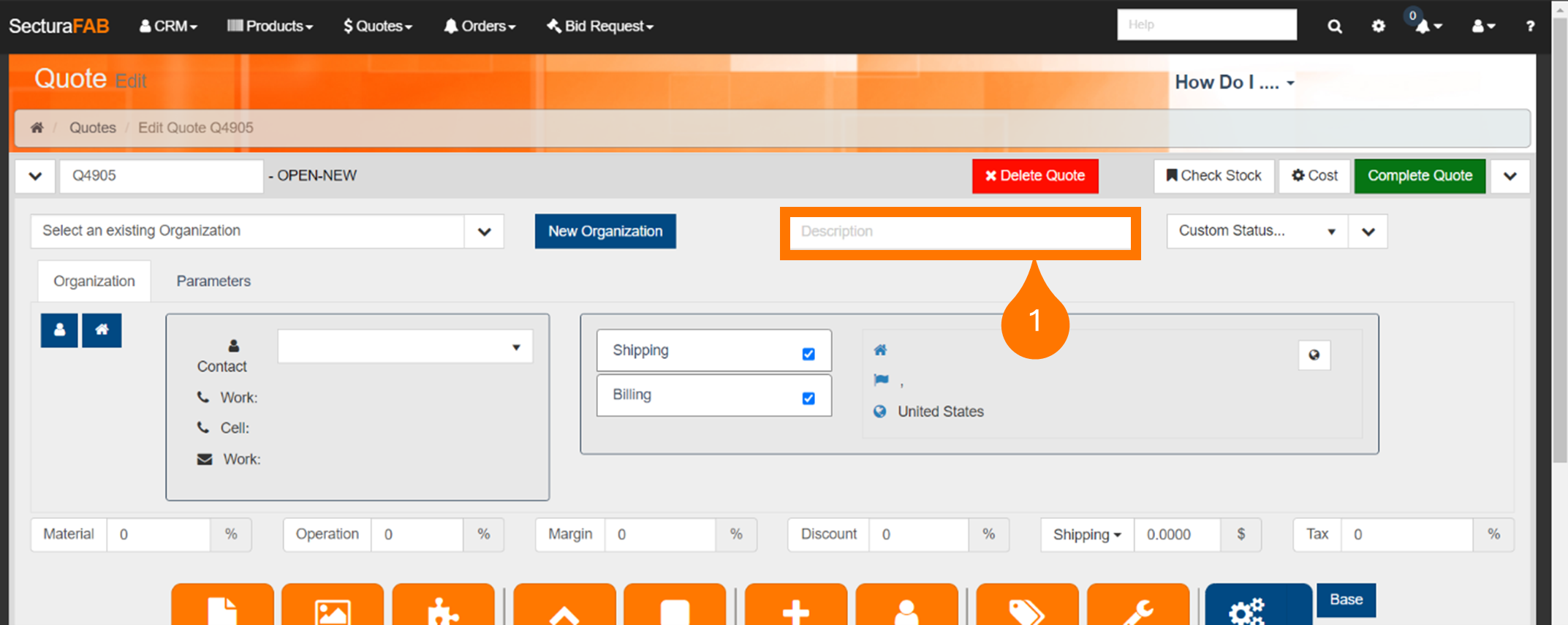
This indicates that the description you’ve written for your quote exceeds 25 characters. Shorten the description to fit the character limit of 25.
If you encounter other errors, or if the error continues even after following the troubleshooting steps, please reach out to your SecturaFAB partner for assistance.
Related to